AI product photos: from phone pictures to a store catalog
See how I create AI product images using eyewear as an example. Watch the workflow, check product details and download the public GitHub skill.
I run Biohac, a store selling glasses and sleep accessories. I need images showing the product on white, with its accessories and on a face. This workflow grew out of work on my own store.
I started with phone photos of glasses on cardboard, then used AI to prepare further images. The video shows Eclipse and Mentor frames, the results, a logo mistake and an upload to a test store through chat.
Can you prepare product images without a photography studio this way? In this example, yes. Before an image goes into a listing, I check that it still represents the same glasses. Here is my approach, with a public skill you can download for your own trials.
The video is in Polish.
Start with photos that describe the product
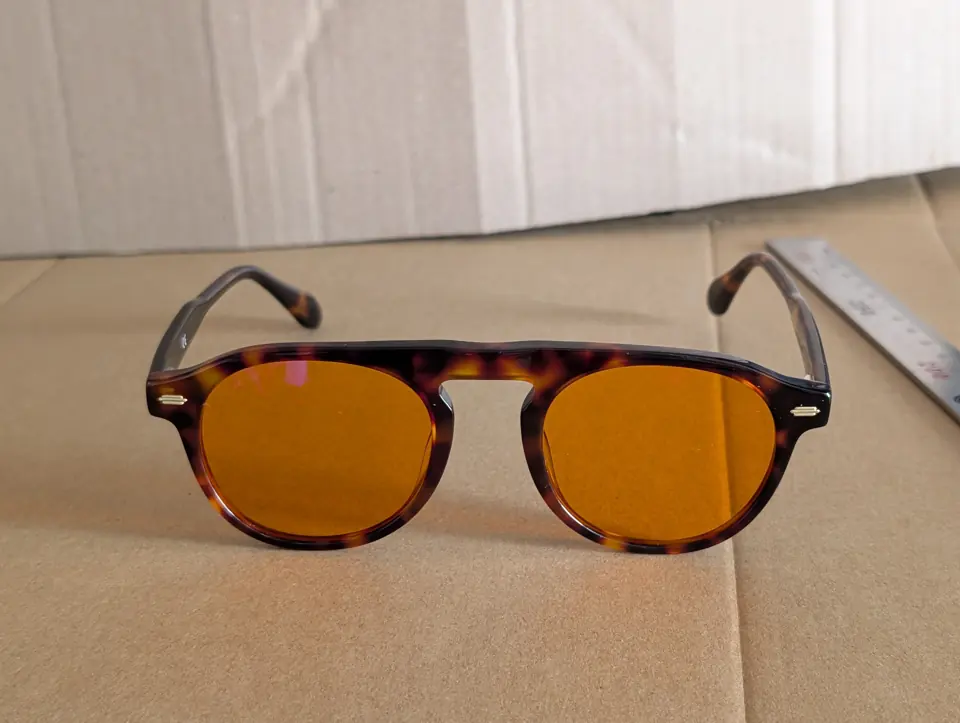
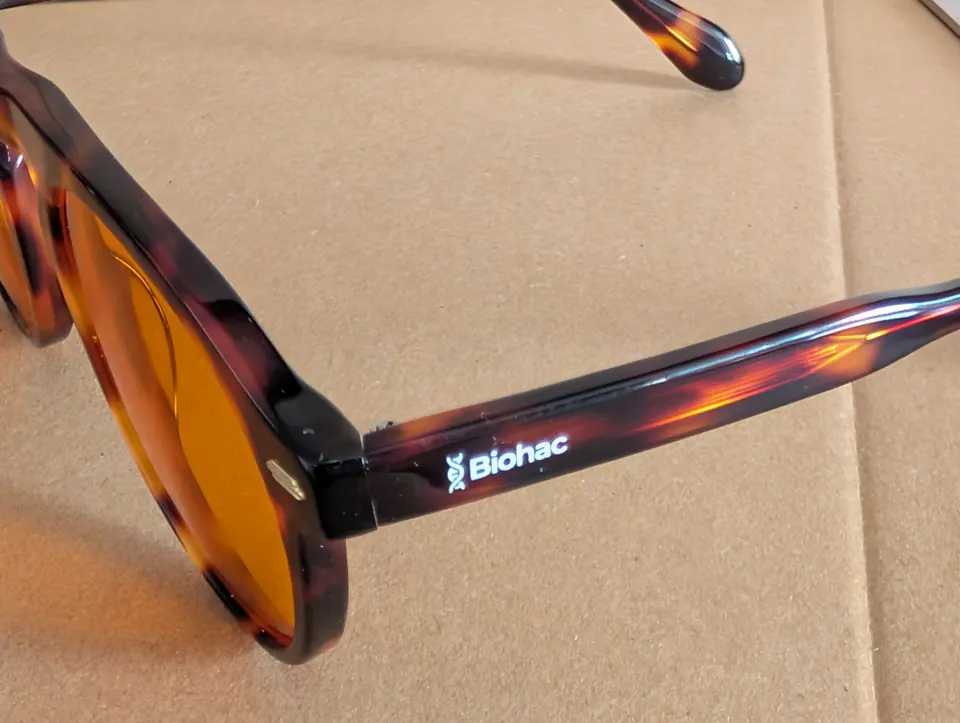
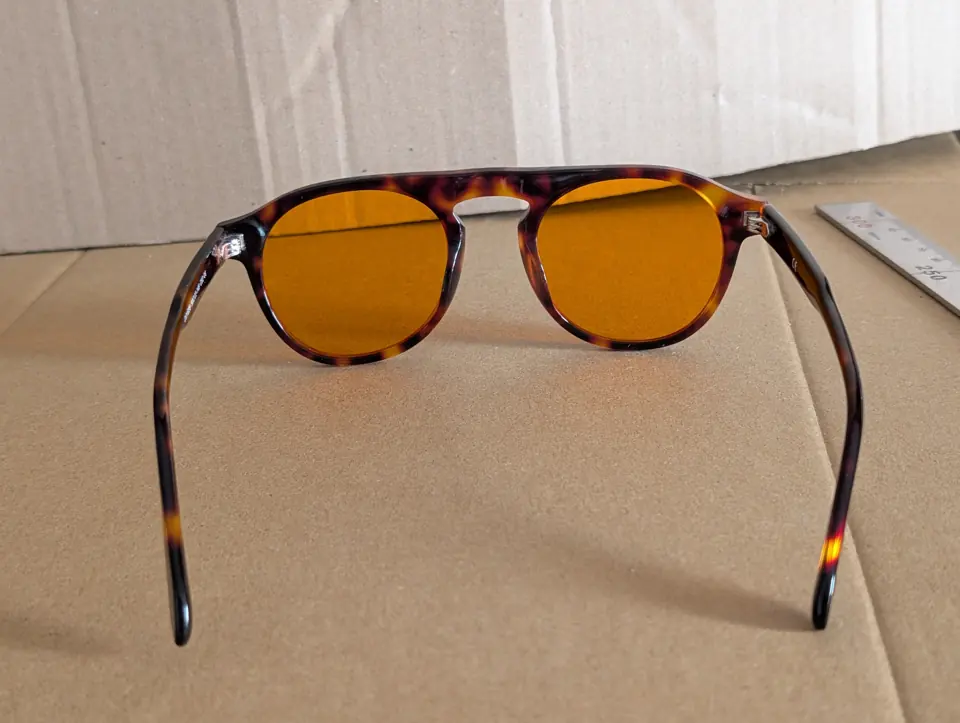
Reference photos need to show the construction. If the generator cannot see a hinge or temple tip, it may invent it. I collect different views of the product, checking that they show the parts to preserve.
This example uses 5 reference photos. That is not a formula for every product. What matters is showing its shape, material, colour and markings.
Before starting, prepare:
- a view of the whole product and photographs of important details;
- a separate logo file if a mark needs to appear on the product;
- a colour reference when matching the colour matters;
- photos of accessories that actually belong to the set.
Cardboard worked for this demonstration, but made the work harder. Even lighting, sharp focus and a clear background help reduce guesswork. A long prompt cannot replace missing visual information.
Specify the shot and the features AI must preserve
In the first part of the video, I use Gemini with Nano Banana image generation. I add the photographs, a description of the intended shot and the logo.
I separate the product’s appearance from its presentation. The product should retain its features. Lighting, background and composition can change according to the brief.
For example:
This is a starting point for the conversation with the agent. For an actual product, I also need to specify the perspective, aspect ratio and which photograph is authoritative for each detail.
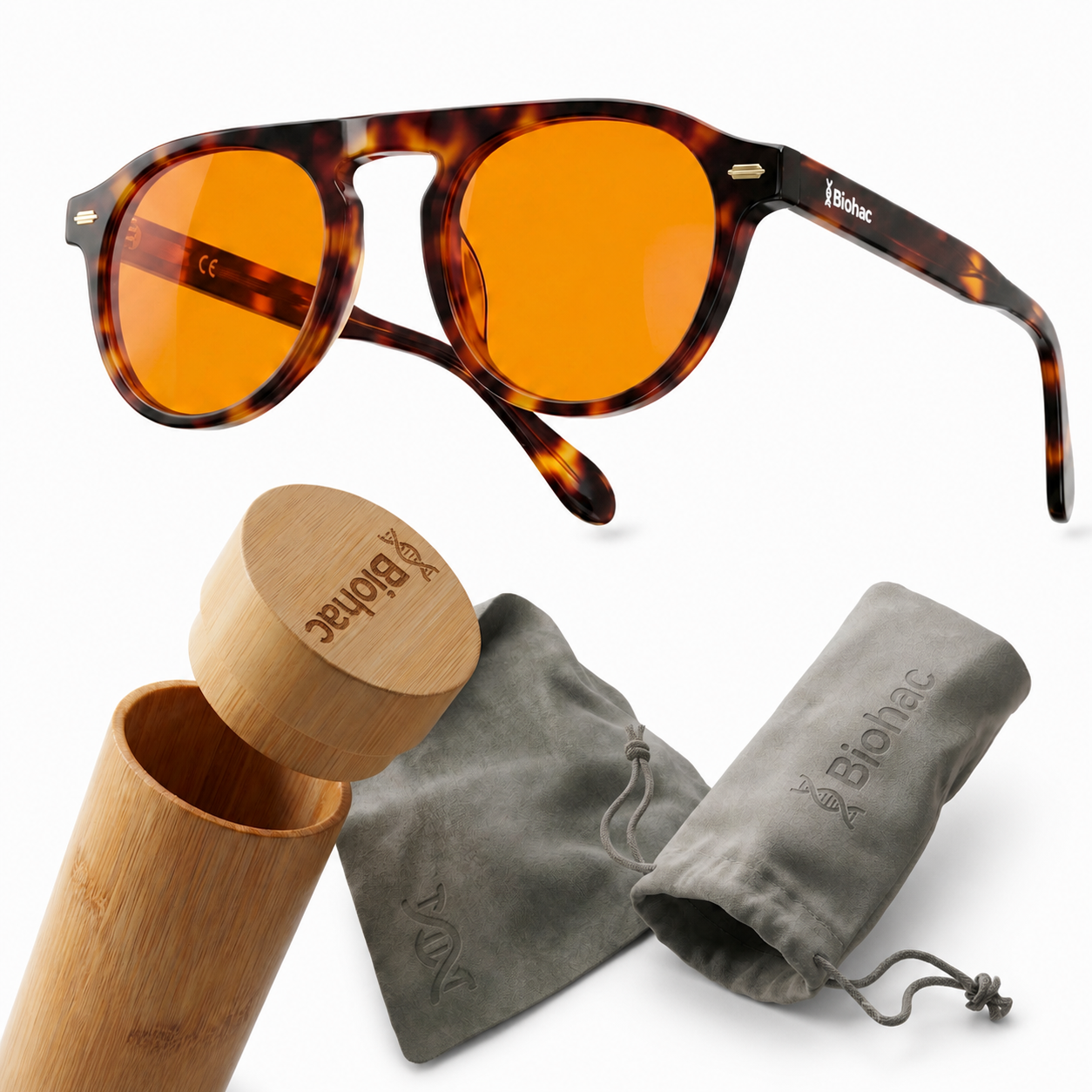
The same frame in different views
The Photo Studio page includes more of my work on Mentor. It shows a main image, a separate 3D render and on-model images. Each answers a different customer question.
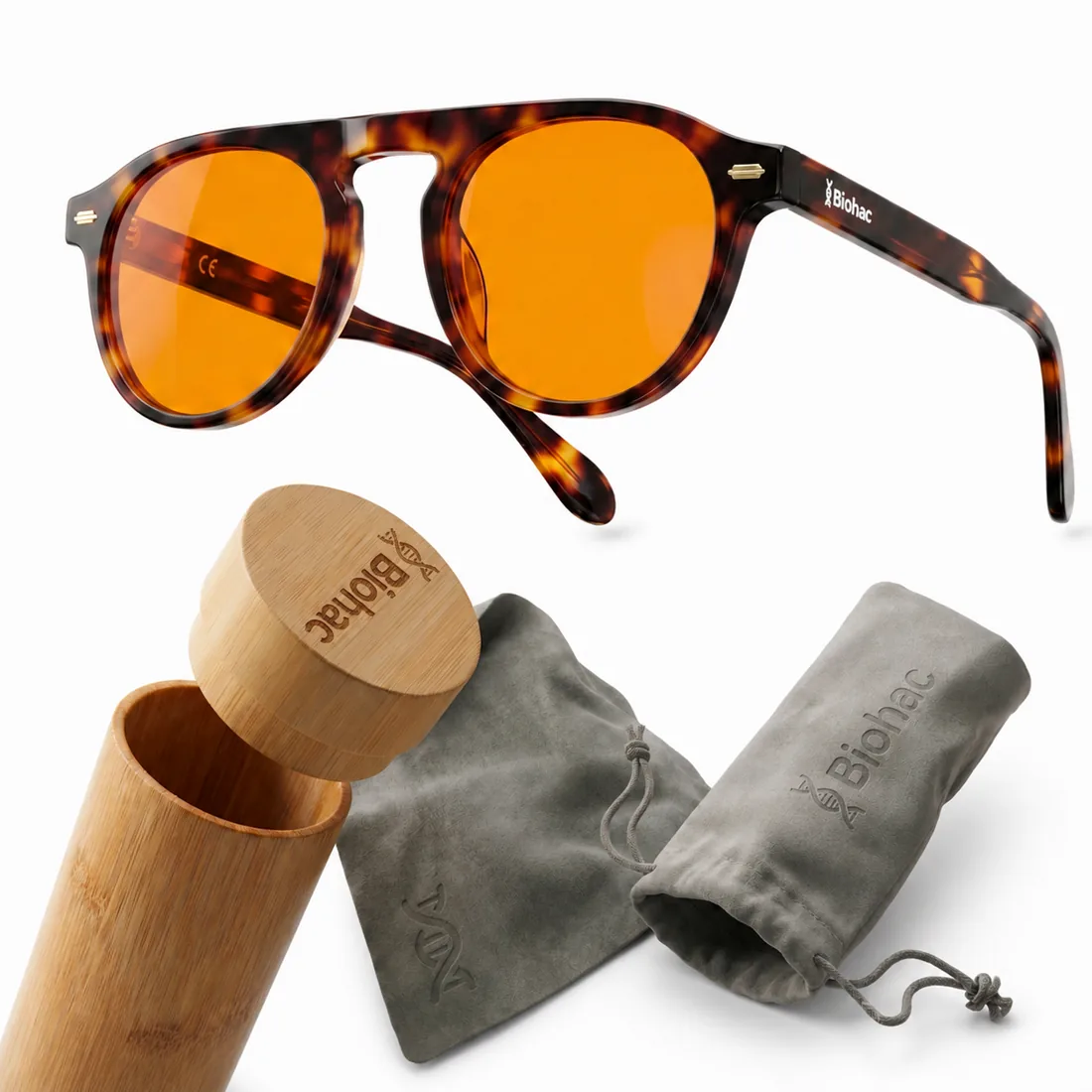
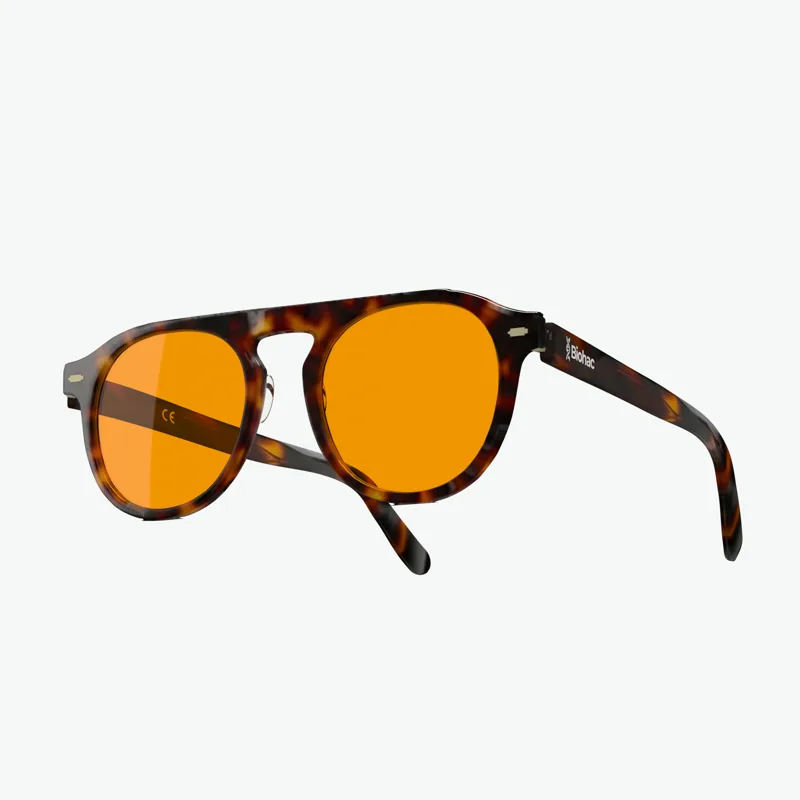
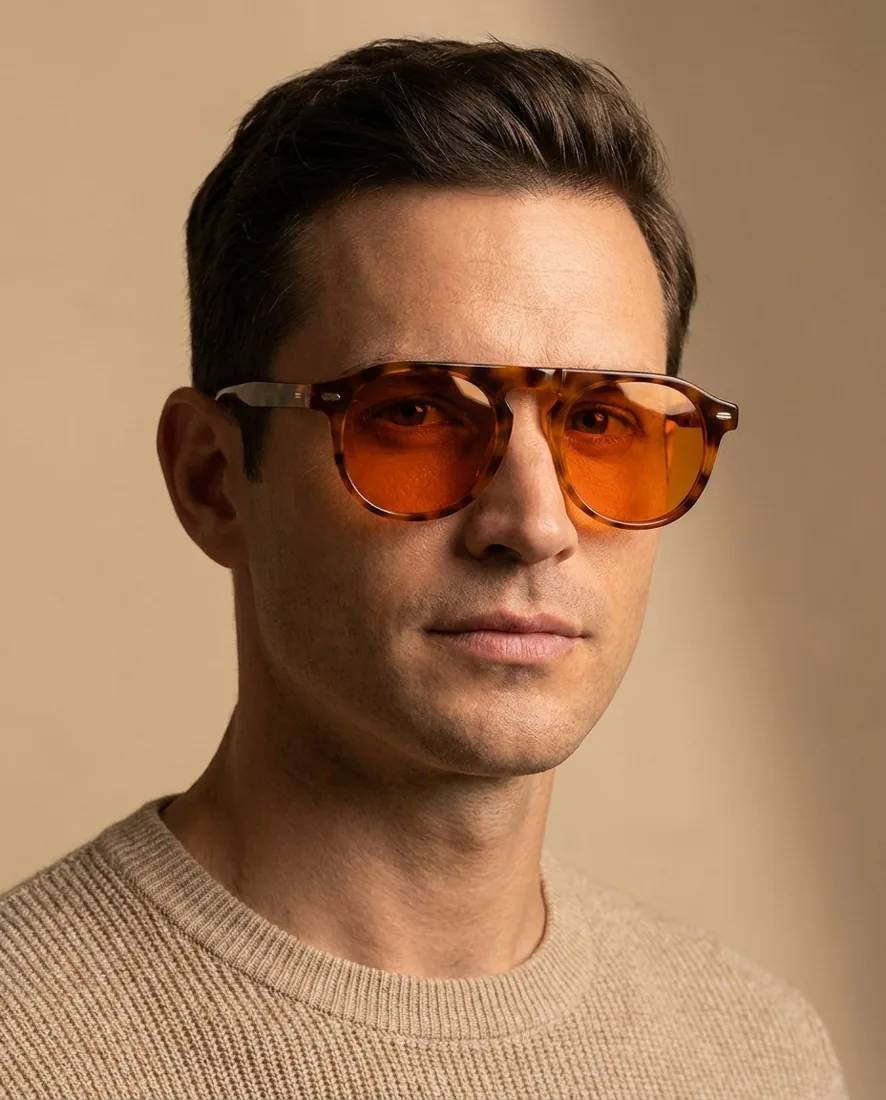
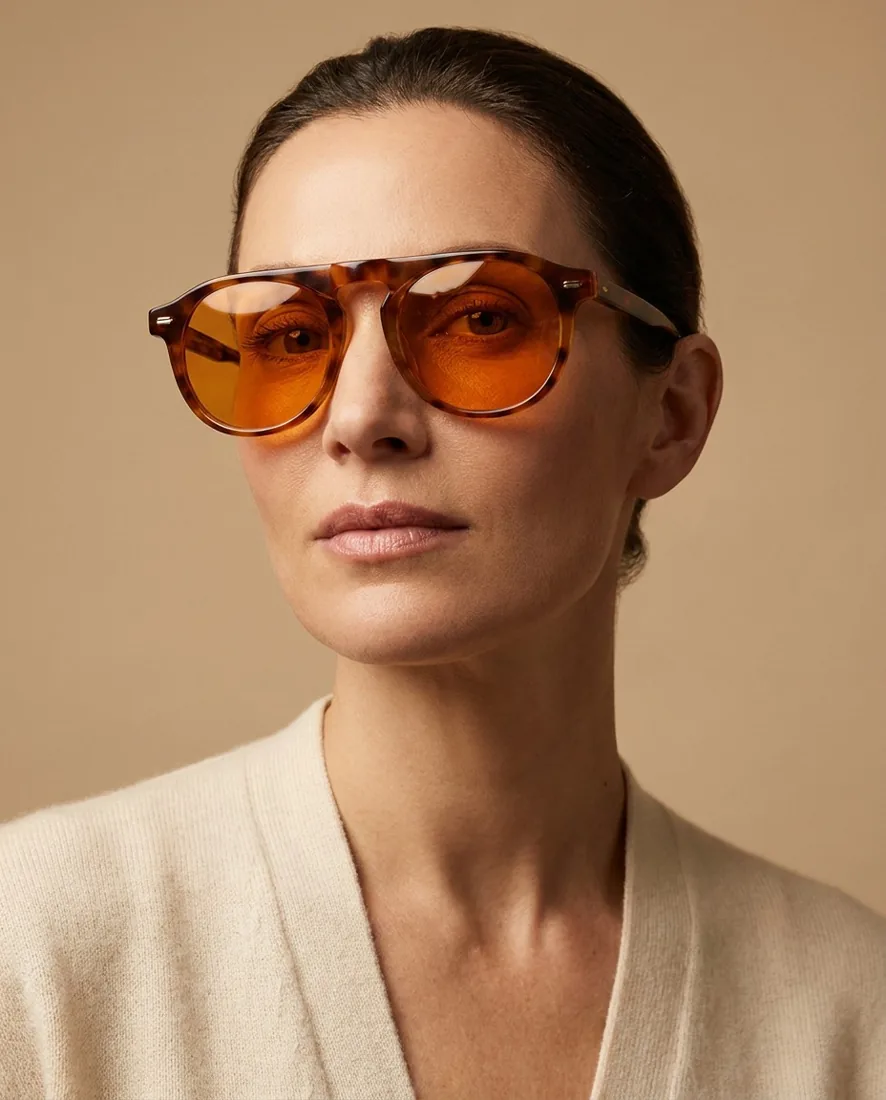
On white, I want to show the shape. In a set image, I want to show what arrives in the box. On a face, I want to show the glasses being worn. The gallery helps customers inspect the product, so several near-identical images add little.
A small logo exposes a bigger problem
In the recording, I stop at the mark on the frame. The generator turns an open helix into a closed one. The image looks convincing at a distance. Zooming in reveals that the mark does not match the original.
Comparison with the physical product is a separate stage. I check:
| Element | What I compare with the reference photo |
|---|---|
| Shape | Frame outline, bridge, thickness and proportions |
| Colour | Frame and lenses, including areas with reflections |
| Construction | Hinges, temples and connections between parts |
| Markings | Logo shape, placement and legibility |
| Set contents | Type and number of accessories shown |
When the logo is the problem, regenerating the whole image is not always the useful next step. Another option is to approve the product image and apply the original artwork separately. The public skill includes a tool for placing it on a flat surface with a perspective transform. Read the logo placement guide.
Short video: 5 cardboard-background photos and the AI result
Prepare accessories separately
The video also shows a composition with glasses in the upper part of the image and accessories below. I had prepared the accessory materials separately beforehand.
This matters for products sold as sets. The model should not invent an extra case or omit an item the customer receives. Before composing the image, I establish what belongs to that specific product variant.
Across products, I aim to keep the background, scale and arrangement of the set consistent. Customers can then compare items without moving between unrelated compositions.
Download Product Photo Studio
I have organised the method in the public Bubiec/agent-skills repository. The product-photo-studio skill helps an agent gather requirements, assemble a modular prompt, prepare a Vertex AI request and review the result. It also includes SVG export and logo placement tools.
Open the Product Photo Studio skill folder
Follow the installation instructions in the README. In Claude Code, add the marketplace and install the plugin. In Codex, copy the skill folder into ~/.codex/skills/.
Downloading the skill is free. Generating images through Vertex AI requires your own setup and incurs charges. A request preview writes a file for inspection without generating a picture. The public package does not include a connection to your store. Skill scope and requirements.
If the tool helps you, consider starring the repository.
The skill rule I start with
The rule is stated in the public SKILL.md file. This excerpt includes the command that builds the prompt:
The supplied product photo is the source of truth.

```bash
python scripts/build_prompt.py path/to/job.toml --out path/to/out
```
For me, that means changing the presentation while preserving the product’s features. The command assembles a prompt from the product configuration. It does not generate an image. The request can then be inspected before paid generation is run within the approved scope.
From one image to a store catalog
The demonstration uses 2 products. A larger catalog also needs a reliable mapping between each image, model and variant, versioned outputs and approval of the results. This is a useful point to involve an agent working with the skill and organised folders. As with AI content for e-commerce, someone needs to assess the output and decide what goes into the store.
Connecting to the store API is a separate stage. At the end of the video, I ask through chat for the images to be uploaded to a test store and for the result to be shown. This is an example of the AI-managed e-commerce I develop at StoreKite. I request an operation, inspect the result and decide what happens next.
The recording also shows removal of the other gallery materials for those test products. In a live store, the scope of that operation needs a separate decision. When adding new images, keep the existing materials until a decision has been made to replace them.
When better source material is needed
This example does not establish that every product can be recreated from a few phone photos. An unusual machine, complex connections or poorly visible details may call for more photographs or a different image production method.
Start with one product and inspect it at full resolution. If the construction changes, improve the references or method first. Repeating the same mistake throughout a catalog only creates more corrections.
Short video: how I start without a studio or expensive lights
Questions about AI product photography
Can AI replace a product photographer?
For some shots, it can replace organising another shoot. In this example, I start with phone photos and produce images for review. That does not make a photographer unnecessary for every product. When construction, material or a difficult detail is missing, I need better reference photographs.
Do I need a photography studio and expensive lights?
For this trial, I did not need a rented studio. I started with a phone and cardboard. Sharpness, visible details and lighting still matter. You can also use a studio or photographer, then use AI to prepare additional scenes from good reference photos.
Is one product photograph enough?
That depends on what it shows and the image you want to produce. I chose several views for this demonstration. An unseen detail remains unknown; I do not want the model designing a hinge or marking on my behalf.
Can I upload generated pictures straight to my store?
Compare them with the product, markings and set contents first. My demonstration uses a test store. Only after image approval do I define changes to the live store. The public skill does not include a ready connection to your catalog.
Are the skill and image generation free?
The skill is free to download. Generation through Vertex AI incurs charges and needs your own setup. A free request preview lets you inspect what would be sent to the model; it does not create an image.
Want this process in your store?
I run StoreKite myself and implement AI workflows for online stores. I can help connect image preparation with catalog organisation, approval and assignment to the right products.
To try the method yourself, start with the public skill. To discuss an implementation, visit StoreKite Photo Studio and describe your product and the photographs you already have.
Next step